

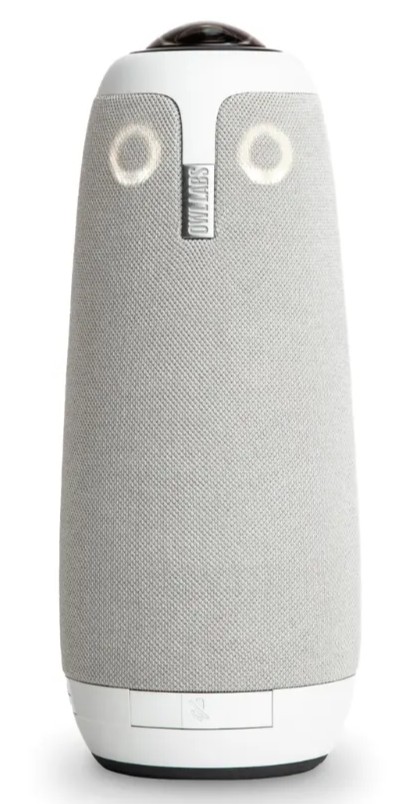
As classroom practice continues to evolve, there is an increasing need for technology that can effectively support group discussion and collaborative assessment, particularly in blended or hybrid settings. This is where the Owl camera comes in, designed to capture 360° views of the room and automatically focus on whoever is speaking. This makes it especially valuable for facilitating and recording group interactions, ensuring that every contribution is visible and heard, whether participants are in the room or joining remotely.
This blog post explores how the Owl camera can be used to enhance group-based learning activities, from student discussions to assessed presentations and collaborative tasks. By improving visibility of speakers and capturing the full dynamic of the room, the Owl provides a more authentic and inclusive way to observe, assess, and reflect on group work.
To bring this into context, we recently had a chance to catch up with Ian Blakemore about his use of the Owl camera in his teaching practice.
Please introduce yourself. What’s your name and job role? Ian Blakemore, Curriculum Head of Sport (FE)
Why did you decide to use the Owl camera rather than a standard webcam? Last year, during a Digital Learning Showcase in the library, the Owl camera was demonstrated, and I thought this would be beneficial for standardisation meetings, group assessments, meetings where some members are online, but others are in the room, etc. Purely because it allows for individuals to sit in a comfortable environment (on a webcam, everyone must be side by side), and it also clearly showcases who is speaking, which is great for assessments and meetings.
What assessment activity were you recording with the Owl camera? For Level 1 Sport, organising an event unit, the learners had to provide feedback to each other and then utilise the feedback as part of their review. I wanted the feedback to be used immediately to develop critical thinking and self-reflection.
How easy was it to set up before the assessment started? Very easy, the camera is plug and play. Teams recognises the camera, when you start the meeting, it is an option to select straight away. The camera also has a built-in mic, and this is also easily selectable when you start the meeting, there isn’t a need to find hidden settings.
What difference did the 360-degree view make to the recording, and did the camera help capture learner evidence more clearly? The 360 view allows the tutor or SV to track who is saying what and when. The Owl camera also has individual cameras within it that focus on who is speaking, so on screen you have 360 as well as the window with the speaker being showcased. If the speaker doesn’t speak for very long, the individual camera may not turn to them in time, this is where the 360 fills in the gap.
How did learners respond to being recorded with the Owl camera? The level 1 learners had no issues with the camera, they were curious at the start, but they didn’t feel like they were presenting, the camera allowed for a natural conversation to happen.
Were there any accessibility or inclusion benefits for learners? Absolutely, the tutor has to provide a suitable seating arrangement for the camera to be effective, square, circle, triangle etc and that’s it, the camera doesn’t tell the learner that the camera is pointing at them so when they talk there isn’t that added pressure of knowing they are being recorded. It looks like a Bluetooth speaker on the table, and therefore the learners don’t pay a lot of attention to it once the recording starts.
How did you make sure consent, privacy and safeguarding were considered? I recorded through Teams, the video was saved in Teams, and I can then control who sees it and who it is shared with.
Did the recording help with feedback, moderation or quality assurance? Yes, the learners are assessed live, but I was able to play back to clarify grades if needed. The assessment wasn’t required for moderation, but the video produced would definitely allow moderators to determine individual contribution and why the grade was awarded.
Were there any challenges, such as sound, positioning or background noise? No, in this recording, the classroom was ideal.
Has using the Owl camera saved time or improved the quality of assessment evidence? It has improved the quality of assessment, as well as time, because more learners can be recorded at once and the work produced was natural and didn’t require scripts.
Would you recommend using it again? Why? It’s a very good tool for a variety of reasons, assessments of group discussions is so simple, but also staff meetings. I had one meeting which included 3 Loughborough Staff, 4 external staff (two were online via teams) as well as the learner and their guardian. This could have been done via teams, everyone logging in and communicating but as I have said previously, the conversations were natural through people being present and those who were online were able to see who was speaking and address them easily when required.
What advice would you give to another member of staff using the Owl camera for assessment? Book it out in advance and have a practice, it is plug and play but as we know with new tech if something isn’t working it’s best to be ironed out before the pressure of learners waiting to do their work is present.
Thanks to Ian for taking the time to answer our questions for this case study. If you or a colleague use one of our approved technologies or devices and would like to share your experience in a future case study, please get in touch with the Digital Learning team.
Help and Support

As always, contact the Digital Learning Team for more information, guidance, and support. You can also book a coaching session here: Digital Learning Coaching.