
Microsoft Word includes built-in Dictate and Transcribe tools that allow teachers and business support staff to turn speech into text quickly and accurately – all you need is a microphone and a reliable internet connection. These features support more efficient ways of working while also promoting accessibility and inclusive practice.
While particularly powerful for providing detailed and timely assessment feedback or recording professional discussions, their use extends much further. From drafting emails and reports to writing meeting notes, capturing ideas on the go, or recording outcomes from staff meetings, these tools can support a wide range of day-to-day activities. They can also make a meaningful difference for staff with dyslexia or other specific learning needs. Teaching staff may find them especially useful for lesson planning, reflecting on practice, and producing documentation more efficiently.
Why not give them a go?
To access Dictate and Transcribe in the Word desktop app, you will need to have the Microsoft 365 version of Word downloaded on your computer. IT support can assist you with this as needed.
Dictate
Dictate converts your voice into text in real time. It could be used for speaking assessment feedback, drafting emails, reports, reflective notes, writing agendas, or summaries quickly.
How to access and use Dictate in Word:
- Open a new or existing document in Microsoft Word (desktop app or online version).
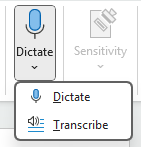
- From the Home tab, select Dictate (microphone icon). If prompted, allow microphone access.
- Dictate will then begin listening, turning speech-to-text.
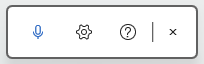
- A menu will also appear with a Microphone, Settings cog and Help icons.
- The microphone allows you to start and stop recording.
- The settings cog opens the “Dictation Settings” pop-up window, where you can pick your spoken language and the microphone you wish to use. You can also enable auto punctuation and filter sensitive phrases.
- When recording, speak clearly and at a steady pace. Say punctuation aloud, such as “full stop”, “comma” or “new paragraph”.
- Once you are done, select the Dictate microphone again to stop recording.
- Review and edit the text as needed.
Transcribe
Transcribe is ideal for longer conversations or recordings, such as professional discussions, meetings, or feedback conversations. It separates speakers and allows you to insert sections of the transcript into your document.
How to access and use Transcribe in Word:
- Open a new or existing document in Microsoft Word (desktop app or online version).
- From the Home tab, select the Dictate ▾ (drop‑down arrow), and choose Transcribe. If prompted, allow microphone access.
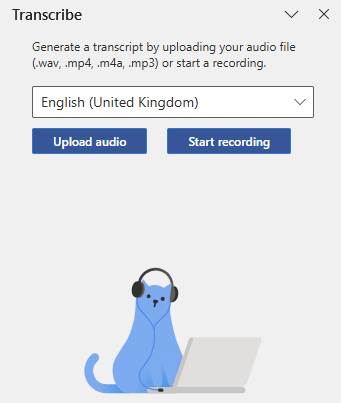
- The Transcribe pane will open, where you can choose a spoken language and either Upload audio or Start recording.
- If you select Upload audio, you can pick an existing audio file, and Word will process the file and generate a transcription. By selecting Start recording, Word will begin listening and recording.
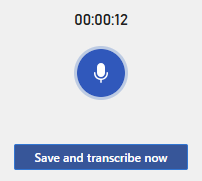
- If you are recording, speak clearly and at a steady pace. You can select the Microphone icon to pause as needed. Once you are done, select the Save and transcribe now button and Transcribe will process the recording.
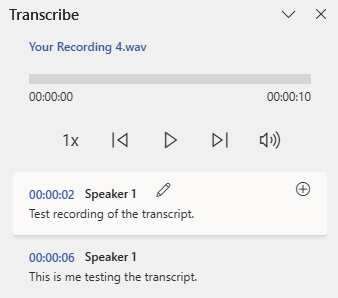
- When Transcribe has processed the upload/recording, you can play the recording back and find the transcript below with speakers identified and timestamps, where possible.
- Review the transcript and make any changes as necessary by selecting the pencil icon that appears when hovering over the section.
- When you are ready, you can add individual sections to the document by selecting the + plus icon or select the Add to document button to insert the whole transcript, with options of: “Just text”, “With speakers”, “With timestamps”, or “With speakers and timestamps”.
- Once you have made your choice, the transcript will be added to the document along with a link to the audio recording.
Head over to the Microsoft support site to find out more information and tips on what you can do to get Dictate to write exactly how you want it:
Help and support

As always, contact the Digital Learning Team for more information, guidance, and support. You can also book a coaching session here: Digital Learning Coaching.