
If you are looking for an alternative to Padlet, with no restrictive board limits, Canva’s Whiteboards are a great option. With Canva’s education licence, you can create as many whiteboards as you need.
They allow teachers to design collaborative activities for students, but can also be used across the organisation as a project management tool. Why not give it a try?
Canva whiteboards can be used for:
- Collecting student responses
- Peer feedback
- Discussion boards
- Exit tickets
- Brainstorms
- Flowcharts
Canva Whiteboard Features
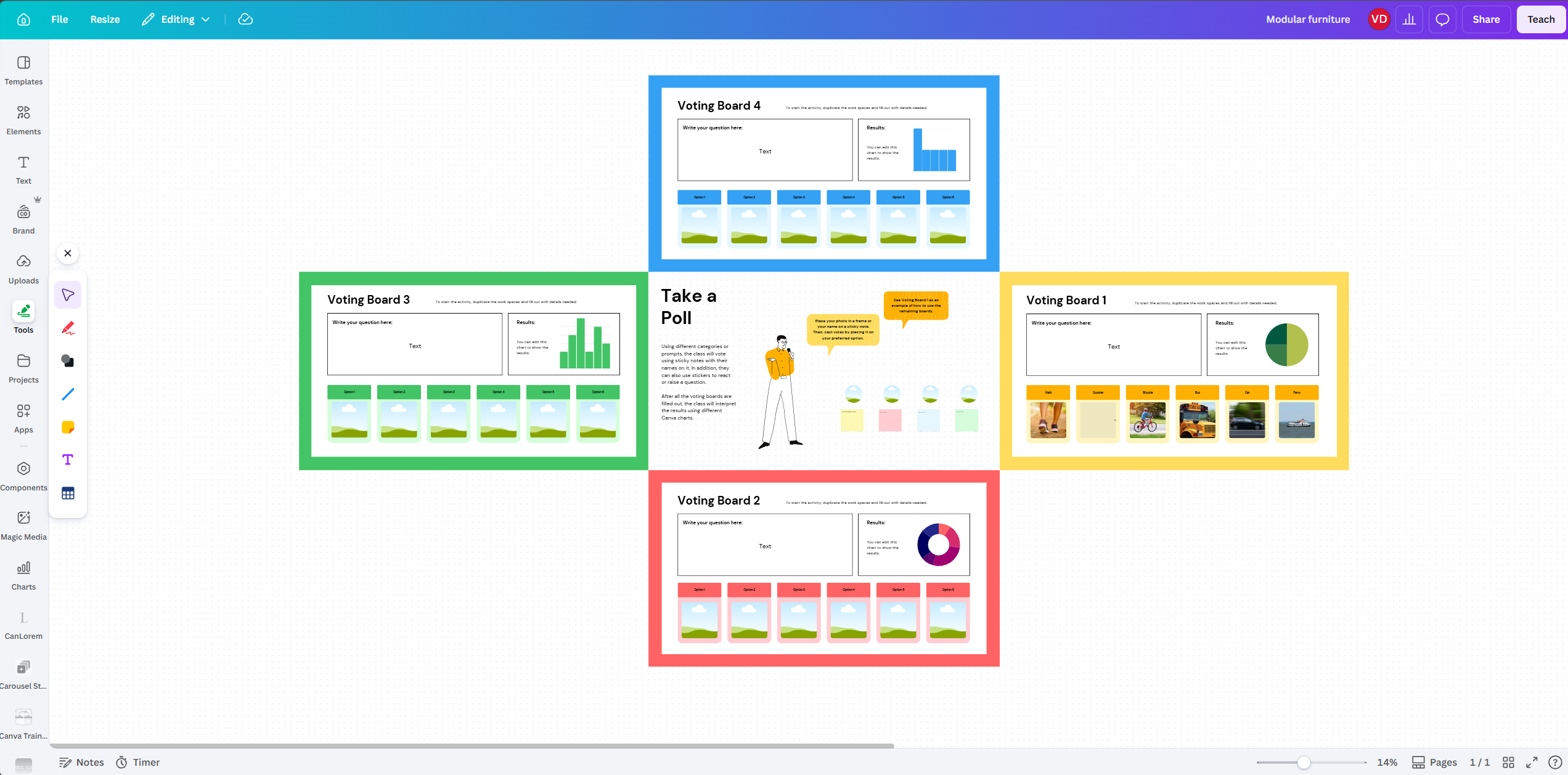
Infinite Canvas: Zoom out to see a complete project overview or zoom in on tiny details. It functions like a sandbox, allowing you to drag text, shapes, and media anywhere, without being constrained by a rigid layout.
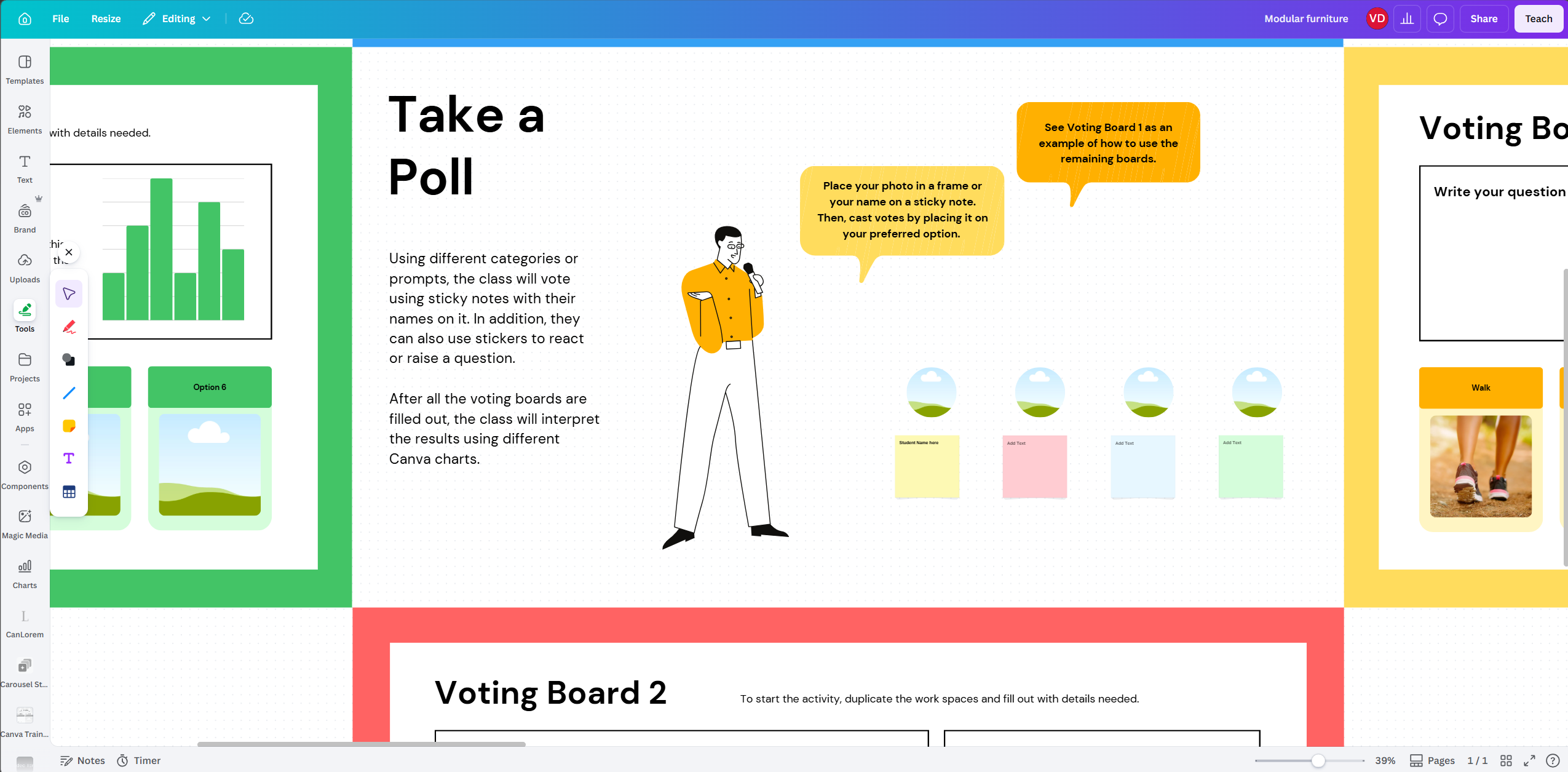
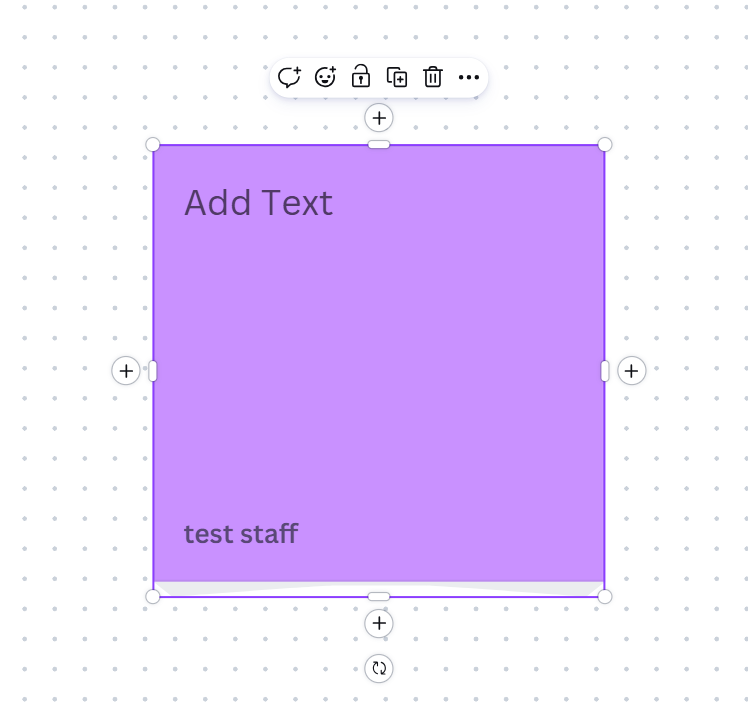
Real-Time Collaboration: Multiple users can jump onto the same board simultaneously. Users write on personalised sticky notes (so you know who wrote what). Live cursor tracking features the user’s name as they move around the whiteboard.
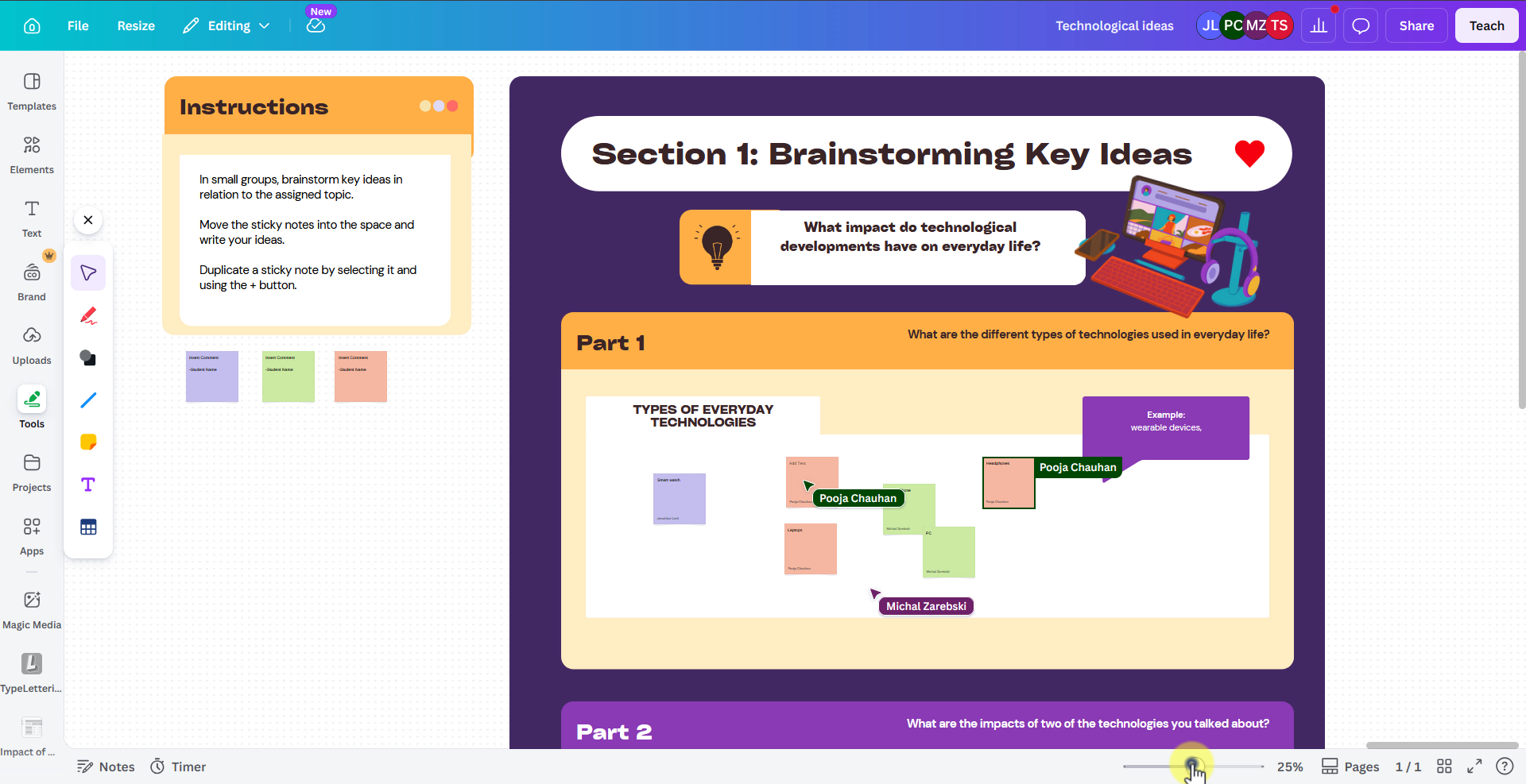
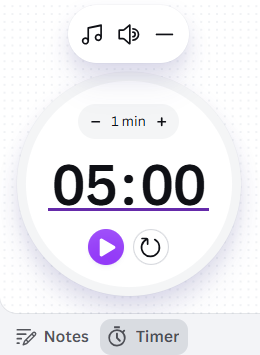
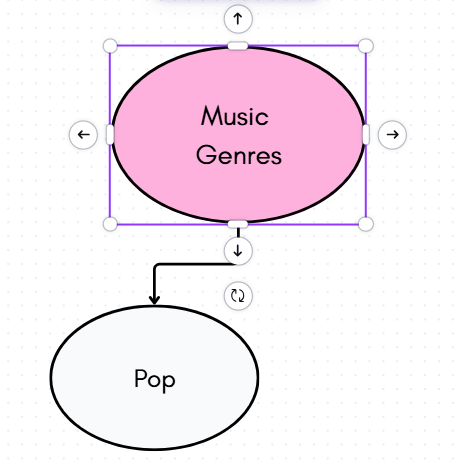
Interactive Brainstorming Tools: Make teaching or facilitation sessions dynamic with the use of sticky notes, quick flow shapes, timers, voting stickers and emojis.
How to use Canva Whiteboards
Watch the video below to learn how to set up and edit a whiteboard, manage sharing permissions to create a collaborative activity, and much more.
If you wish to learn more about Canva, head over to our Canva training course on StaffZone.
Help and Support

As always, contact the Digital Learning Team for more information, guidance, and support. You can also book a coaching session here: Digital Learning Coaching.