

If the Microsoft Teams application is not working as expected, it is often worth giving it a full restart before reaching out for additional support. This can often resolve certain issues, such as messages, channels, Classwork, or the Turnitin tab not loading properly, or Teams freezing completely.
Simply selecting the “X” button in the top right corner of the window does not close Teams fully, as it keeps running in the background. Restarting Teams from the taskbar instead can often resolve these minor issues and help restore normal performance.
Restarting the Teams application
Follow the steps below to completely close and restart Microsoft Teams using the taskbar icon:
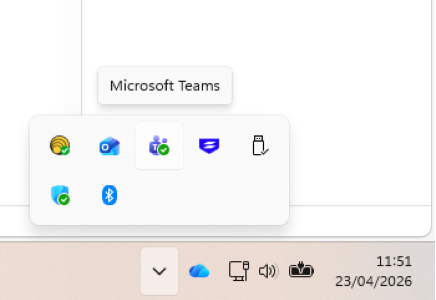
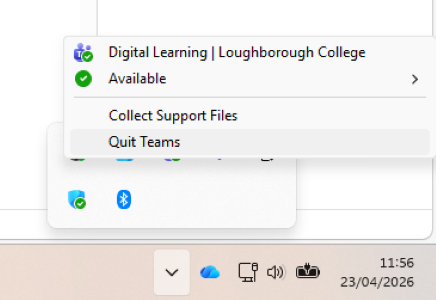
- Navigate to the bottom-right corner of the taskbar.
- Look for the small Teams icon. You might need to select the “∧” arrow first and a pop-up will open.
- Right-click on the icon.
- Select “Quit Teams” and the application will fully close.
- Open Teams as normal.
If the issue persists, contact Digital Learning for additional support. In the meantime, you can try the web version of Teams and see if the issue occurs there as well.
Refreshing Teams in a web browser
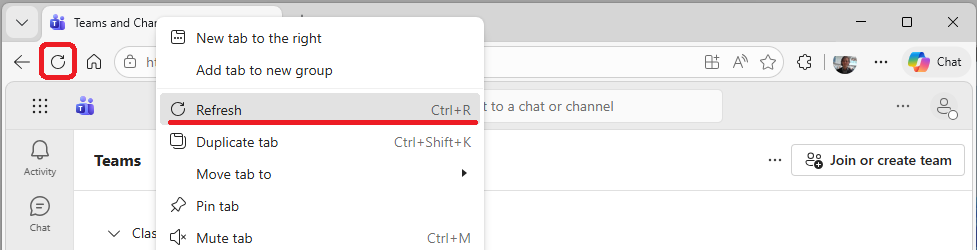
If you are using the web version of Teams, you can refresh the site to potentially resolve some minor errors or synchronisation issues. To do this, simply select the refresh arrow in the top left corner of the page, or right-click the tab and select “Refresh“.
Help and Support

As always, contact the Digital Learning Team for more information, guidance, and support. You can also book a coaching session here: Digital Learning Coaching.