

You can now add one of Turnitin’s main features, the Similarity Report, to your Microsoft Teams Assignments. You can use it to detect potential plagiarism in your students’ works. This can only be used for formative assessment and is different from creating full Turnitin assignments in Teams, which must be used for summative assessment.
Adding Turnitin to Teams Assignments
Learn how to enable Turnitn’s Similarity Report for your Teams Assignments below:
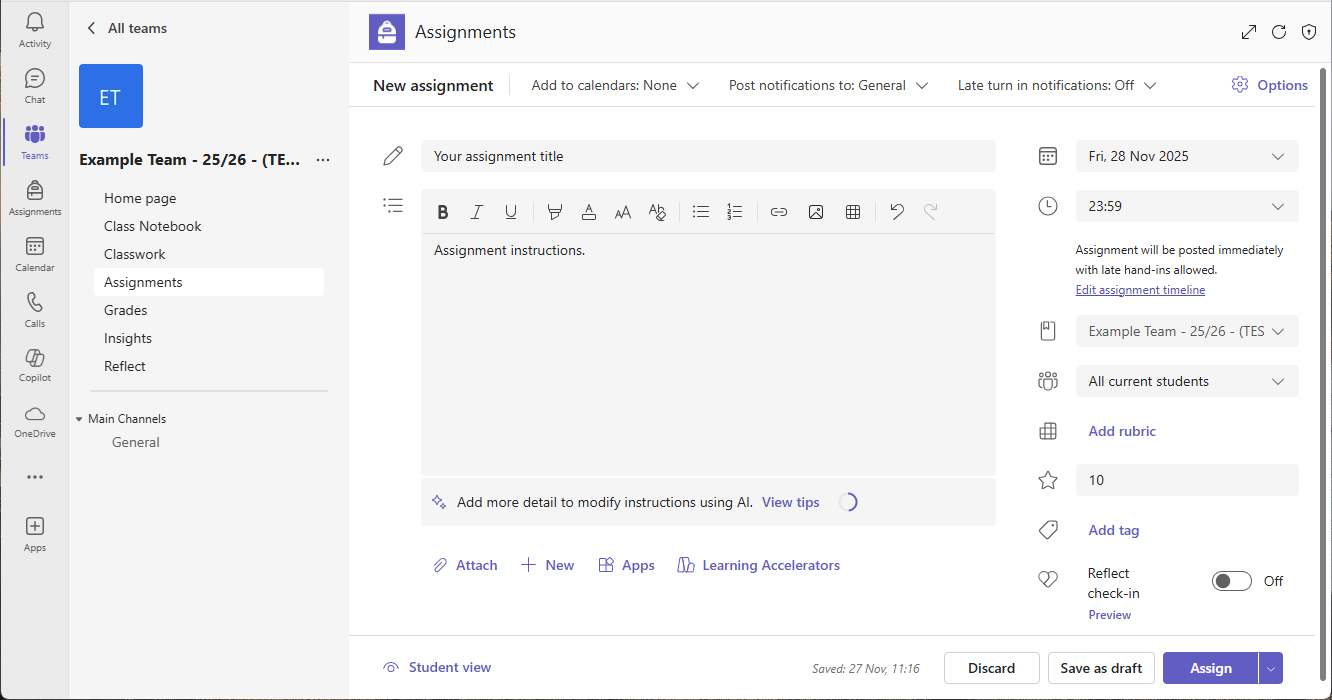
- In your Team, go to the Assignments tab, select “Create” and choose “New assignment“.
- The Assignment creation window will open, where you can customise the Assignment’s details.
- In the top right corner, select “Options” and a panel will open.


- Enable “Turnitin” to add it to your Teams Assignment.
- When you are ready, select “Assign” to make the Assignment live, or “Save as draft” if you would like to make further changes before publishing.

Viewing the Similarity Report
Your students Hand in their works as for a normal Teams Assignment. After they have submitted, you can view the Similarity Report from where you grade the submissions:
- Enter Assignments and select the correct assignment from the list.
- Select a student from the list. You can see who has viewed and handed in the assignment as well.
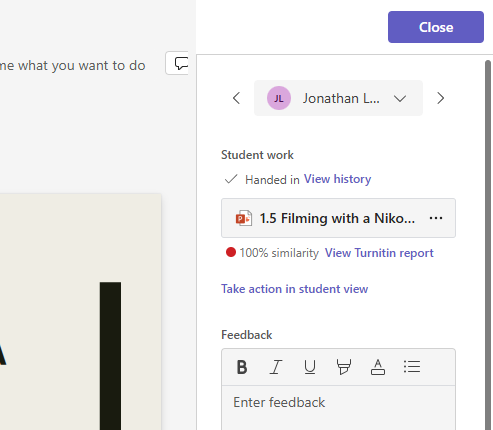
- On the right, below the file name, select “View Turnitin report“.
- Turnitin’s Similarity Report will open in a new browser window.
The similarity score lets you see if (an how much) text from your student’s submission was found in Turnitin’s extensive database, indicating potential plagiarism. You can see the matched sources under the “Sources” tab and the corresponding text will be highlighted in different colours in the submission.
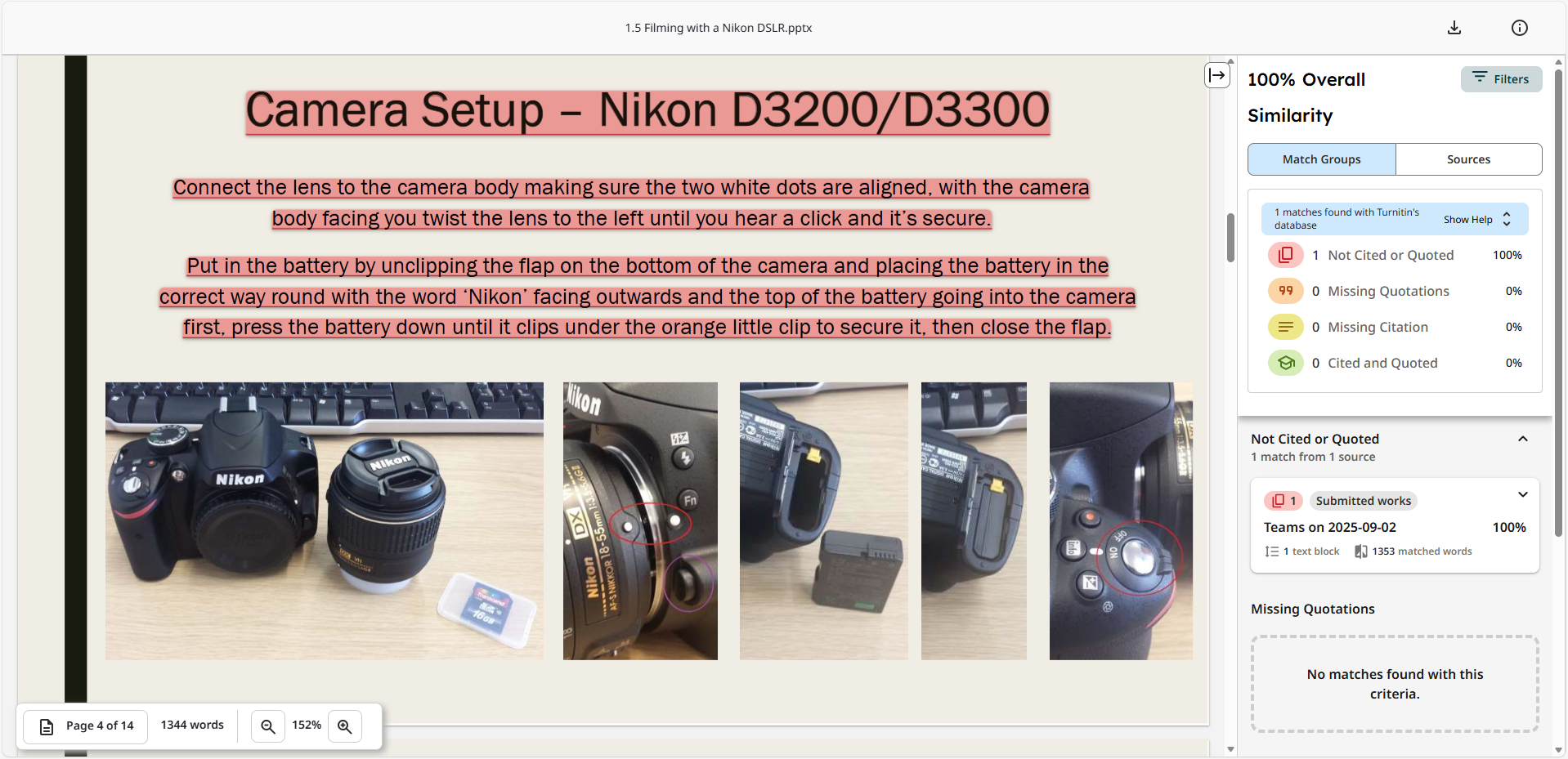
Note that only the Similarity Report will be available. The AI writing report and any marking or feedback options, found in Turnitin’s Feedback Studio, are not available, and the standard Teams Assignment interface must be used to provide feedback.
Using Teams Assignments with Turnitin must not be used for summative assessment and a full Turnitin assessment (using the Turnitin tab in the General channel) must be created instead. Access our StaffZone course on how to create and use Turnitin assignments.
Help and Support

As always, contact the Digital Learning Team for more information, guidance, and support.